
Use Jade to store and generate one-time passwords (OTPs) for any platform that supports two-factor authentication (2FA). Records can cover your email account, an exchange, a Blockstream app wallet, or any other platform that uses time-based 2FA.
Tip: Jade provides similar OTP functionality to authenticator apps such as Google Authenticator, with the secrets held offline on a PIN-protected device.
Note: Importing accounts from 2FA apps and exporting OTP records require a recent Jade firmware version. See Update Jade firmware if you have not updated recently.
This guide covers:
Add a New OTP Record
1.
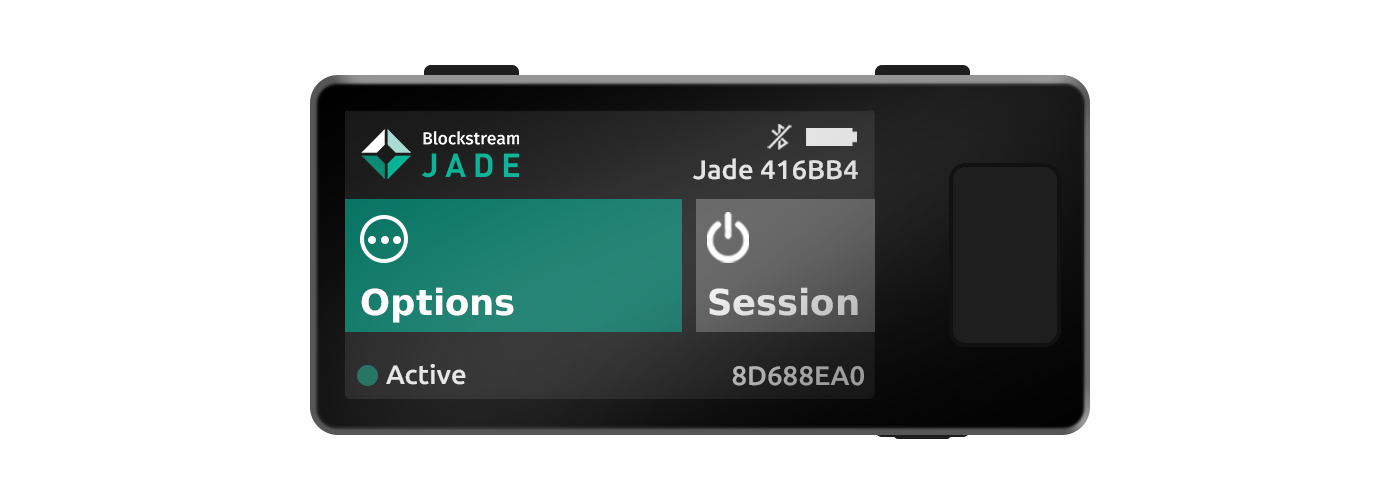
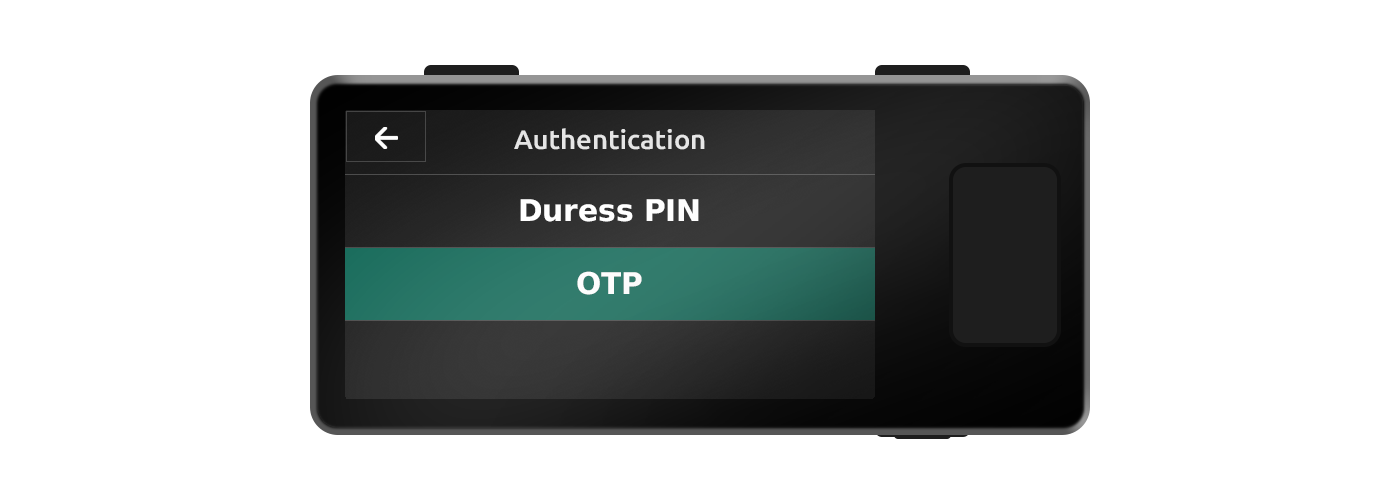
During an active Jade session, select Options → Authentication → OTP.
2.
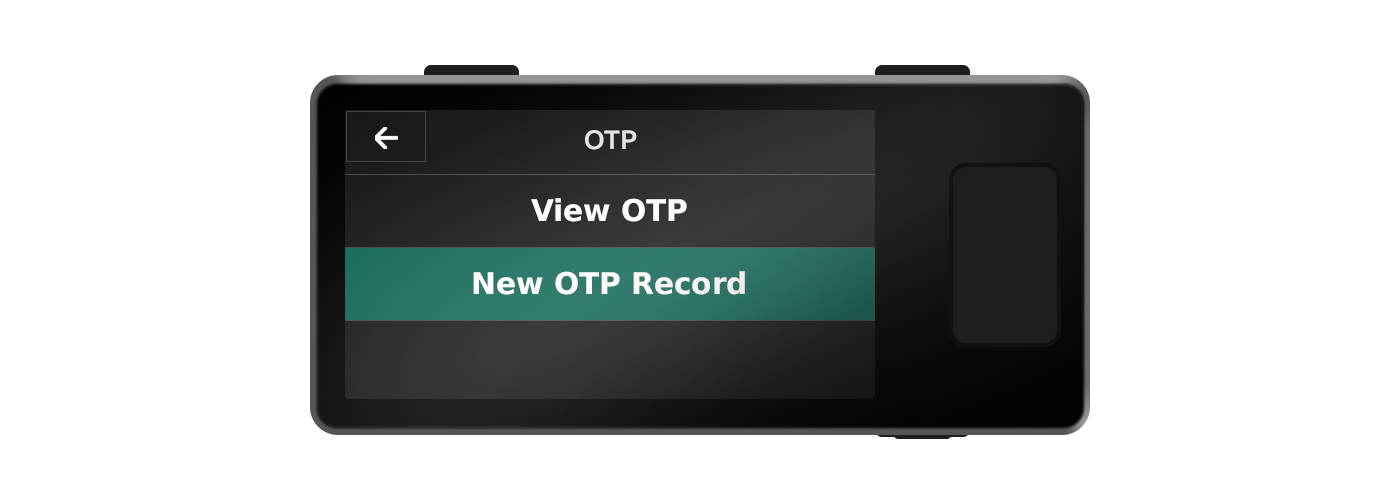
Add a new OTP record by scanning a supported QR code or by manually entering a Uniform Resource Identifier (URI) provided by the platform you are enabling 2FA for.
3.
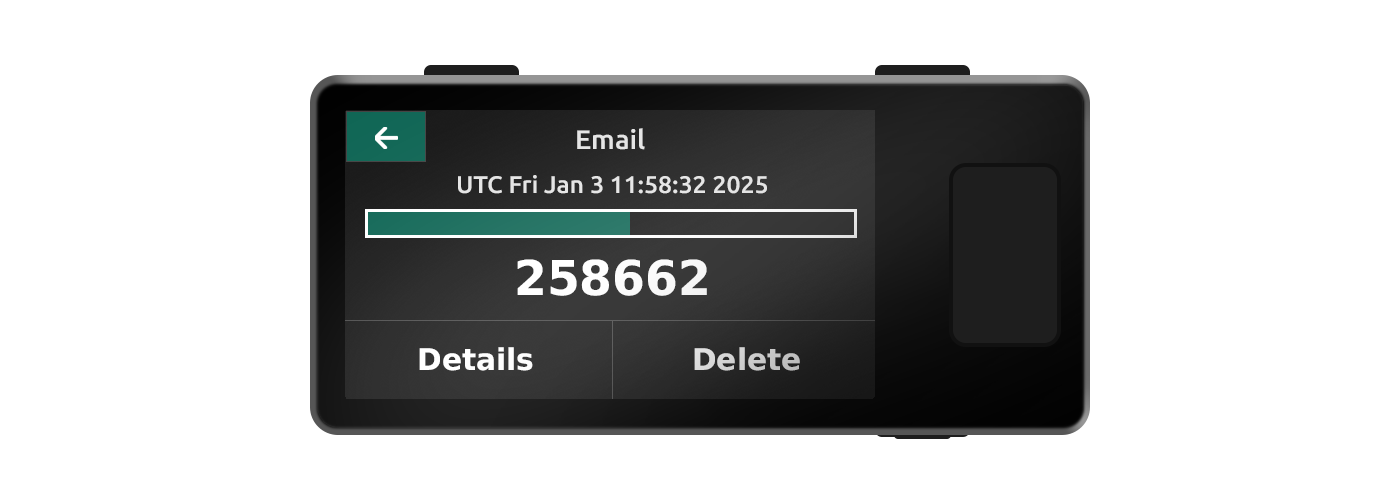
After setup, select View OTP and choose the record you want to view. The time-based OTP code displays along with a progress bar showing how long the current code is valid for.

Import Accounts from Your 2FA App
Jade can read your 2FA app's export QR format directly, so accounts already stored in 2FA can transfer to Jade without re-running setup for each platform.
1.
In your phone's 2FA app, generate the export QR code for the account or accounts you want to move.
2.
During an active Jade session, select Options → Authentication → OTP → New OTP → Scan QR.
Tip: Alternatively, you can simply select Scan QR from Jade's home menu.
3.
Point Jade's camera at the export QR code displayed in your 2FA app. Each scanned account is added to Jade as its own OTP record.
Tip: For the most reliable scan, export one account at a time from your 2FA app. If you export several accounts at once, zoom in on the QR code on your phone before scanning so Jade can read it cleanly.
Export OTP Records from Jade
Stored records can be exported from Jade as a scannable QR code or as readable text. The exported secret is compatible with iOS and Android authenticator apps, so records can move to a secondary phone, an encrypted drive, or another authenticator app of your choice.
Warning: OTP records are tied to the Jade device they were created on. Restoring your recovery phrase to a new Jade brings back your bitcoin, but it does not bring back your 2FA records. If a Jade is lost, factory reset, or replaced without a prior export, the records on it cannot be recovered. Export your records to a secure backup location before you need to recover.
1.
During an active Jade session, select Options → Authentication → OTP → View OTP, then choose the record you want to export.
2.
When the OTP code displays, select Details.
3.
Select Export. Jade displays the secret as a scannable QR code on a screen labeled Scan Secret Key. Scan the QR with the authenticator app you want to import the record into.
4.
To view the same secret as text instead, select View Secret. Jade shows the secret on a screen titled Secret Key. Write the secret to a secure offline location or save it to an encrypted drive.
Once a record is exported and verified in your backup destination, it can be restored to a replacement Jade or used in a secondary authenticator app at any time.