
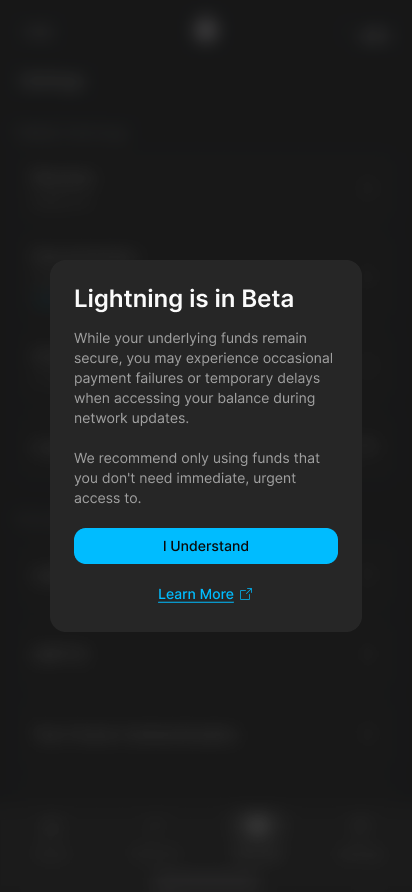
Note: Lightning is currently in beta. Your underlying funds remain secure, but you may experience occasional payment failures or temporary delays when accessing your Lightning balance during network updates. We recommend only using funds that you don't need immediate, urgent access to. If you run into issues with Lightning, contact our support team online or through the app.
Enable Lightning for iOS
iOS requires Experimental Features to be turned on before you can enable Lightning.
1.
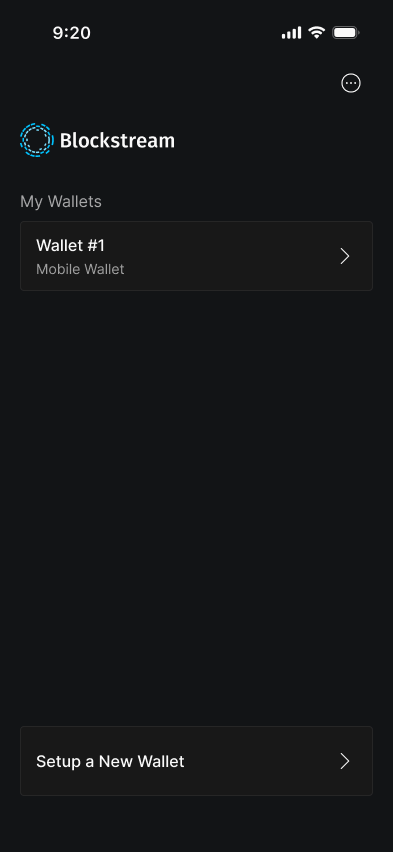
From the My Wallets screen, tap the three dots icon in the top right.
2.
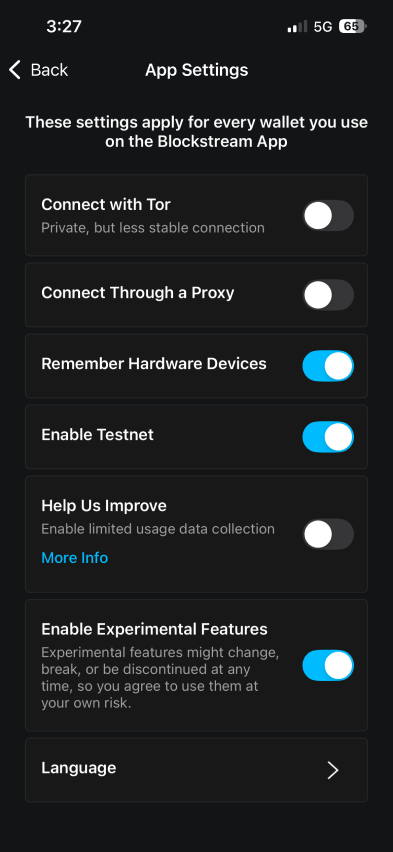
In the Options menu, tap App Settings.

3.
Turn on Enable Experimental Features.
With Experimental Features enabled, you can now enable Lightning from your wallet's Settings.
1.
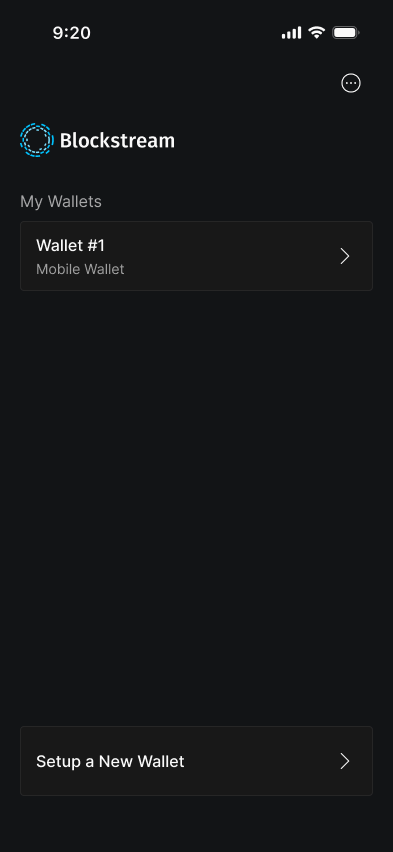
From My Wallets, tap the wallet you want to use.
2.
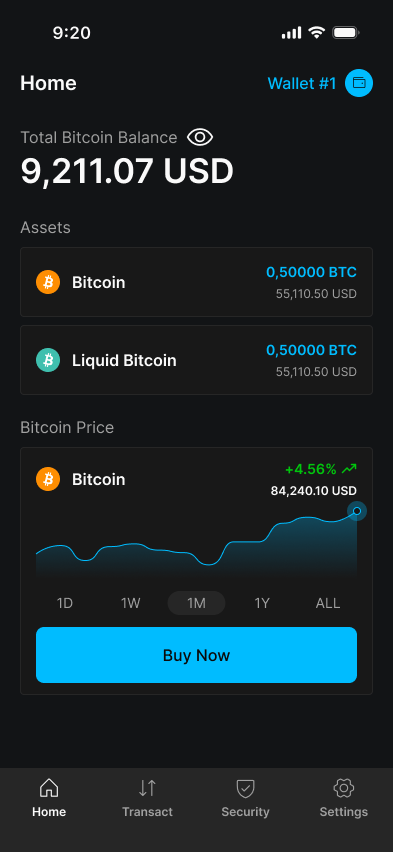
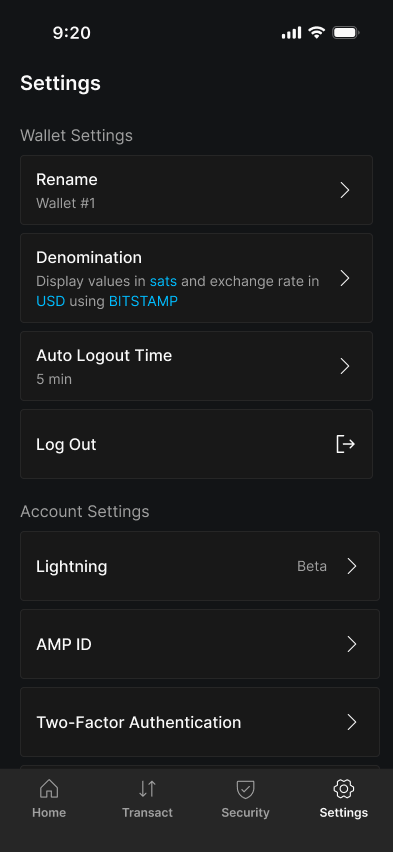
Tap Settings in the bottom navigation.
3.
Under Account Settings, tap Lightning.
4.
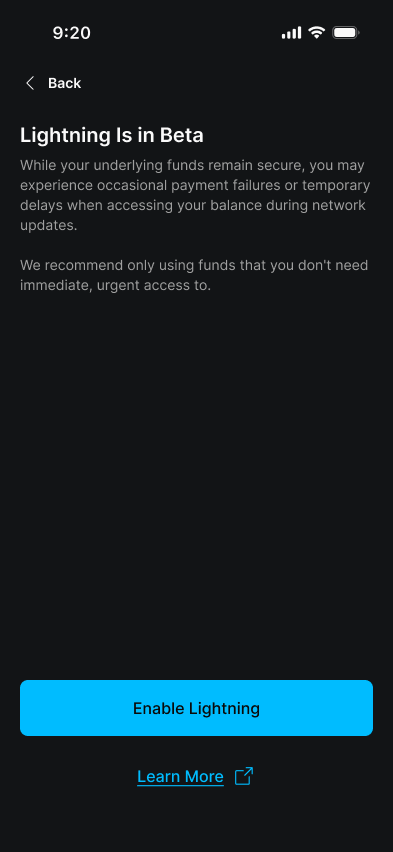
Review the Lightning Is in Beta information, then tap Enable Lightning.
5.
A green Lightning Enabled banner appears at the top of the Settings screen.
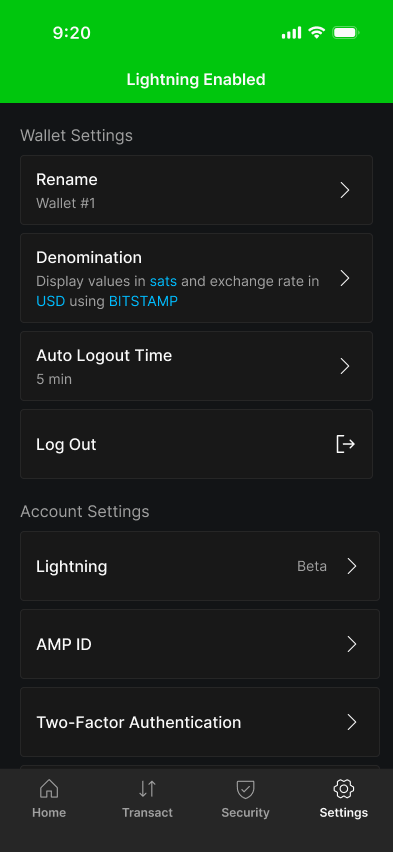
You can now send and receive Lightning bitcoin from this wallet.
Enable Lightning on Android
You enable Lightning directly from your wallet's settings. No Experimental Features step required.
1.
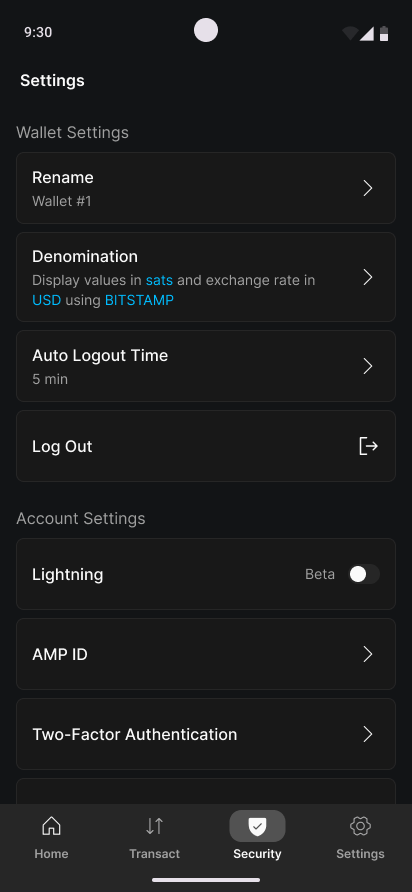
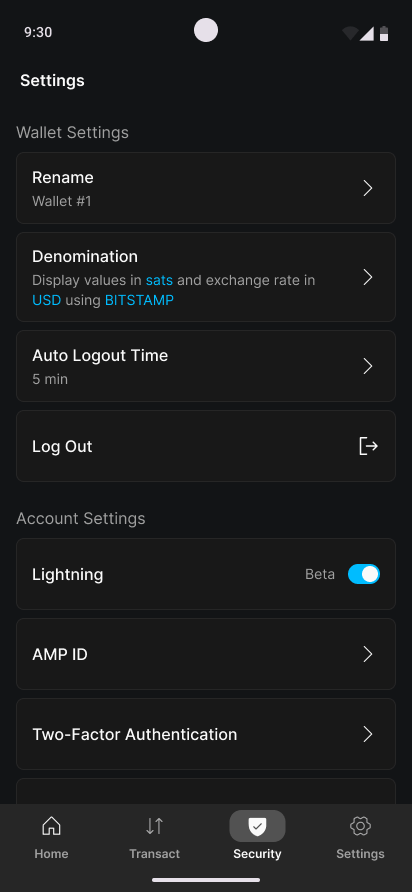
From your wallet's Settings, scroll to Account Settings and tap the Lightning toggle.
2.
Review the Lightning is in Beta dialog and tap I Understand.
3.
Wait for Creating your Lightning account... to complete.

4.
The Lightning toggle is now on.
You can send and receive Lightning bitcoin from this wallet.